
I used to think Git was just three commands.
git add .
git commit -m "update"
git push
That was my workflow for years.
Read Free for non-members.
One day I watched a senior developer recover deleted commits, clean up 6 months of messy history, and undo a bad merge without Googling anything, without panic.
Meanwhile, I was still Googling: "how to undo last commit but keep changes"
That was the moment I realized something:
Most developers know Git just enough to survive. The ones who move fast know how Git actually works.
Here are the Git tricks and habits I learned way too late the ones that genuinely changed how I work every day.
The short answer: Senior developers aren't faster at Git because they memorize more commands.
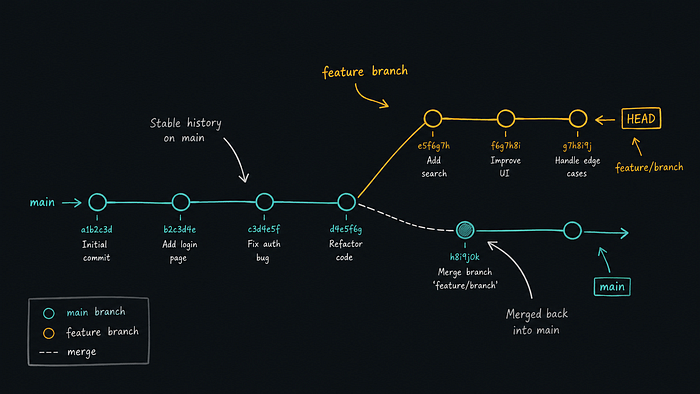
They're faster because they understand Git as a timeline a record of every state your project has ever existed in. Once that clicks, every command starts to make intuitive sense.
Git Isn't Just Version Control
For a long time I treated Git like a backup system.
Make changes → commit → push.
But Git is more like a timeline of your project's entire life.
Once I understood that, commands stopped feeling scary.
And fixing mistakes became much easier.
Trick #1: git status Is the Most Important Command
This sounds obvious. I ignored it for years.
Now I run it constantly before every commit, before switching branches, before rebasing.
git statusMost Git mistakes happen when you don't fully know your current state. I've accidentally committed .env files, debug logs, unfinished code, and random screenshots just because I skipped this step.
One command. Costs two seconds. Saves hours.
Trick #2: git diff Saves Me From Embarrassing Commits
This one changed my commits completely.
Before committing:
git diffThis shows exactly what changed. I've caught API keys, broken imports, and leftover console.log statements right before pushing to production.
Even better:
git diff --stagedShows only the files you already added. I use this before almost every commit now.
Trick #3: Stop Using git add . Blindly
git add . stages everything.
Sometimes that's fine. But often you only want to commit one specific change not the 4 other things you touched while working.
Use this instead:
git add -pThis lets you add changes piece by piece. You review each chunk and decide: stage it or skip it.
Real example: I was working on a login fix, a UI redesign, and random cleanup all in the same file. git add -p let me commit only the login fix cleanly.
Cleaner commits. Easier debugging later. Worth the extra 30 seconds.
Trick #4: git bisect Makes You Feel Like a Wizard
I ignored this command for years because it sounded too advanced.
The situation: you know something is broken in production. You know it worked three weeks ago. You have no idea which of the 80 commits in between introduced the problem.
git bisect start
git bisect bad          # current state is broken
git bisect good v2.3.1  # this version was fine
Git then checks out the commit exactly halfway between good and bad.
You test it. You tell Git whether it's good or bad.
It halves the search space again. Repeat about 7 times and you've narrowed 80 commits down to 1.
I used this on a bug that had been open for a month. Found the exact commit in eleven minutes. The commit message said "minor cleanup." It was not minor cleanup.

Trick #5: git stash Is a Lifesaver
This saved me more times than I can count.
Situation:
You're halfway through a feature. An urgent bug appears. You need to switch branches right now.
Before: I would panic.
Now:
git stashYour work disappears into a safe locker. Switch branches, fix the bug, come back:
git stash popEverything returns exactly as you left it.
Branches are basically sandbox environments. git stash is the emergency pause between them.
Trick #6: git log Finally Made Git Click
For years, Git history looked like noise to me.
Then I started using:
git log --oneline --graph --decorateSuddenly the project's entire timeline was visible like branches, merges, commit flow, all of it laid out clearly.
I made an alias immediately:
alias gl='git log --oneline --graph --decorate'gl is now one of the most-used commands in my daily workflow.
If you're not comfortable with aliases yet, or your terminal setup is still basically default I wrote a separate post on terminal tricks that covers this ground: I Used the Terminal Wrong for Years.
Worth reading alongside this one.
Trick #7: Branches Are Cheap — Use Them More
Working directly on main is a trap. I did it for way too long.
Now I create branches for almost everything:
git switch -c fix-login-bugThis changed how fearlessly I experiment. I can test ideas, refactor aggressively, and try risky fixes without ever touching stable code.
Branches are free. The cost of breaking main is not.
Branches are basically sandbox environments.
It's basically:
cd -for Git branches.
Trick #8: Learn git restore Before You Need It
This command saved me from heart attacks.
I accidentally edited the wrong file.
Instead of manually undoing changes:
git restore app.jsFile restored to its last committed state. Instantly.
I wish I learned this in my first month.
Trick #9: git worktree Is Criminally Underrated
This one came up in a Reddit thread titled "Hot take: Worktrees are underrated" and I went and read the whole thing. The hot take was correct.
Normally when switching tasks mid-feature, I used to:
- stash changes
- switch branches
- do the hotfix
- switch back
- unstash
- pray nothing conflicts
git worktree is different:
git worktree add ../hotfix-branch hotfix/login-timeoutThis checks out hotfix/login-timeout into a separate directory.
Your current branch stays untouched. You cd into the other directory, fix the bug, push, then cd back to your feature.
No stashing. No checkout. No "oh god what was I in the middle of."
I'll be honest here: I don't reach for this one automatically yet. It's still a bit unfamiliar. But for longer interruptions (an hour+), it's significantly cleaner than the stash-and-pray workflow.
Trick #10: git reflog Feels Like Time Travel
This is the command that makes senior developers look magical.
I once thought I permanently lost commits during a rebase.
Here's what most developers don't know: Git remembers almost everything.
git reflogShows every recent Git action even including commits you thought you deleted, branches you dropped, and states you reset past.
Recovery is one command:
git checkout <commit-id>That moment completely changed how I think about Git mistakes. Now I'm much less afraid of making them.
git reflog is your safety net. It exists for roughly 90 days after an action. Use it before assuming anything is gone.
Trick #11: Better Commit Messages Matter More Than You Think
Old me:
git commit -m "fix"Future me hated that guy.
Now:
git commit -m "Fix token refresh issue in auth middleware"Good commit messages are not for Git. They're for humans. Usually your future self six months from now, trying to understand why something changed at 11pm on a Thursday.
Trick #12: Interactive Rebase Made My History Cleaner
I avoided git rebase for years because it sounded dangerous.
Then I learned:
git rebase -i HEAD~5This lets you squash commits, rename them, reorder them all before a PR ever goes out.
Before:
fix
another fix
small update
final fix
After:
Improve authentication error handlingOne clean, meaningful commit. Your teammates will notice the difference.
Trick #13: git blame Is Surprisingly Useful
Despite the scary name.
git blame app.jsShows who changed each line, when, and in which commit.
I've used this to trace production bugs back to the exact commit that introduced them, understand why a strange piece of code exists, and find related commits I didn't know were connected.
It's basically code archaeology. And it's surprisingly satisfying when you find what you're looking for.
Trick #14: Aliases Removed Friction
I got tired of typing long commands.
So I added aliases:
alias gs='git status'
alias ga='git add'
alias gc='git commit -m'
alias gp='git push'
alias gl='git log --oneline --graph --decorate'
Each alias saves maybe 3 seconds. Across 50 uses a day, across months that adds up. More importantly, lower friction means you actually run the commands you should be running.
I also wrote about terminal tricks:
The Real Shift
For years, I thought good Git skills meant memorizing commands.
Now I think it's mostly this:
Staying calm when things go wrong.
The best developers I know are not afraid of Git.
Because they understand recovery.
That's the real difference.
Not speed typing.
Not fancy workflows.
Confidence.
And honestly, most Git confidence comes from learning:
- how to inspect changes
- how to undo mistakes
- how to recover safely
Once you know those things, Git stops feeling dangerous.
Start with:
git diffgit stashgit reflog
Those three alone will save you countless hours.
Conclusion
Most developers use Git like a backup tool.
The better developers use it like a time machine.
Thanks for reading 🙏
Connect with me 👇